
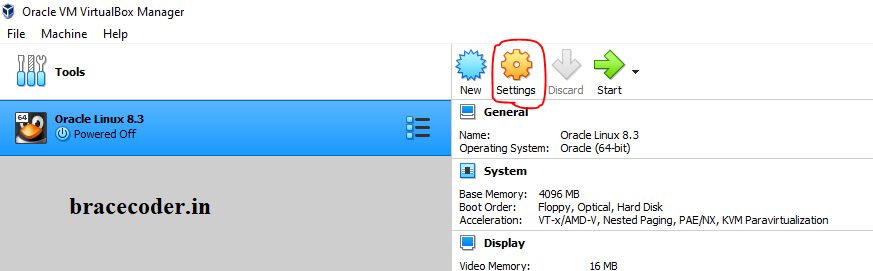
- Start the Linux OS in VirtualBox.
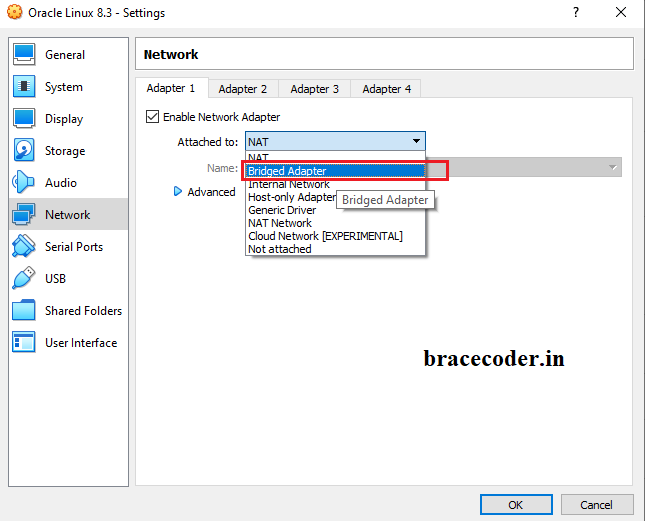
- In VirtualBox, go to the "Settings" for the Linux OS and navigate to the "Network" tab.
- Change the "Attached to" option to "Bridged Adapter".
- Start PuTTY on your host machine.
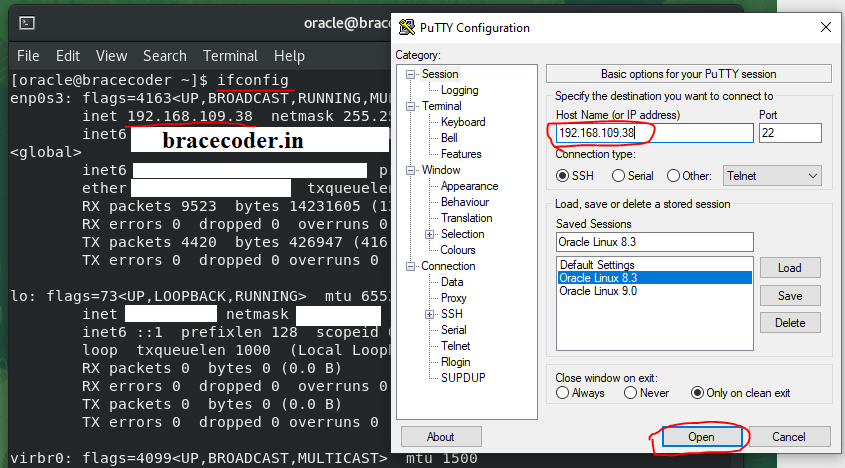
- In PuTTY, enter the IP address of the Linux OS in the "Host Name (or IP address)" field. The IP address can be found by running the command "ifconfig" in the Linux terminal.
- Select "SSH" for the connection type.
- Click "Open" to connect to the Linux OS.
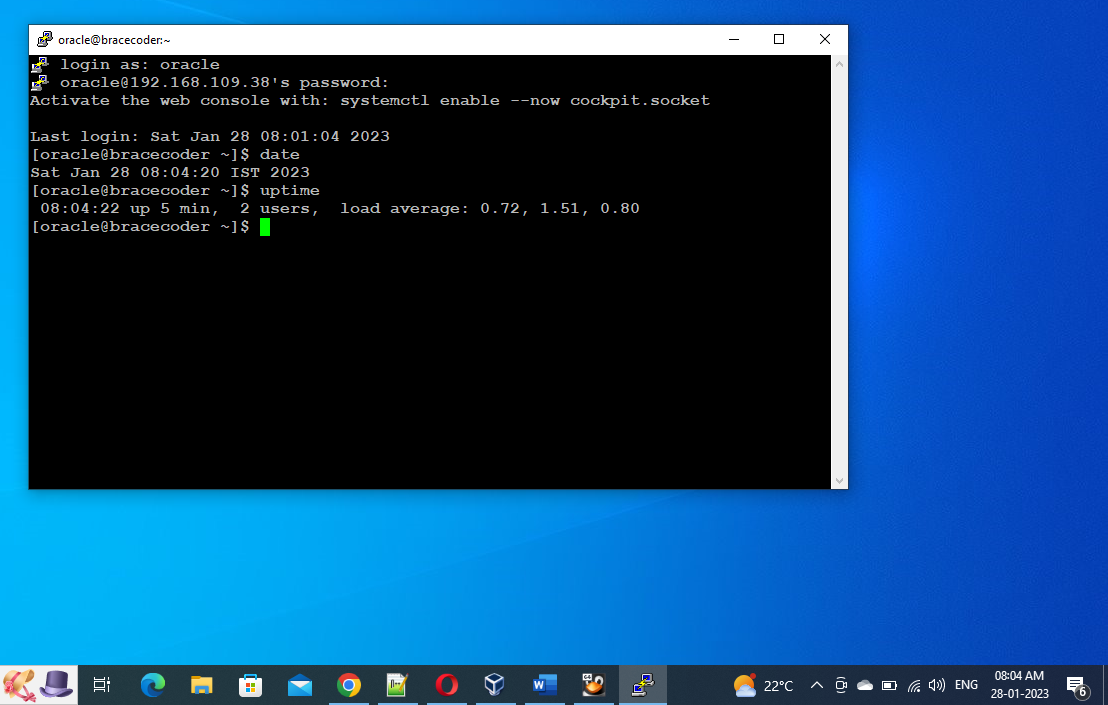
- A terminal window will open and prompt you for a username and password.
That’s it.
INFO
If you would have any questions or concerns, please leave your comments. I would be glad to explain in more details. Thank you so much for all your feedback and support!
Frequently asked questions
Why do I need a Bridged Adapter?
With a bridged adapter, the VM gets its own IP address on the same network as your computer, so PuTTY can connect to it directly. With the default NAT adapter, the VM's address is not reachable from the host without port forwarding.
How do I find the VM's IP address?
Log in to the Linux VM and run
ifconfig or ip addr. Use the address of the bridged network interface in PuTTY's Host Name field.Can I keep NAT instead of Bridged?
Yes. Add a port-forwarding rule in the VM's network settings, for example host port 2222 to guest port 22, then connect PuTTY to
127.0.0.1 on port 2222.PuTTY says "Connection refused". What should I check?
Make sure the SSH service is running in the VM with
systemctl status sshd, and that the VM firewall allows port 22.


Comments
0Please sign in to leave a comment.
No comments yet
Be the first to share your thoughts!